
Introduction
Knowing how to redact a PDF properly is no longer a nice-to-have skill for anyone who handles contracts, court filings, HR records, or client data — it’s a legal liability if you get it wrong. Most people think redaction means drawing a black box over sensitive text. It doesn’t. A black box only hides text visually; the actual words often remain fully intact underneath, recoverable with nothing more than a simple copy-paste. That single misunderstanding has triggered some of the most embarrassing document leaks in recent legal history, and in litigation, it can go much further than embarrassment — it can waive attorney-client privilege entirely. Whether you’re a solo practitioner, a startup founder, or just someone handling sensitive paperwork, learning how to redact a PDF correctly protects you from all of it. This guide covers why that happens, what it actually takes to redact a PDF correctly, and the exact steps to do it using VelaPDF’s Redact PDF tool.
Why “Black Box” Redaction Isn’t Redaction At All
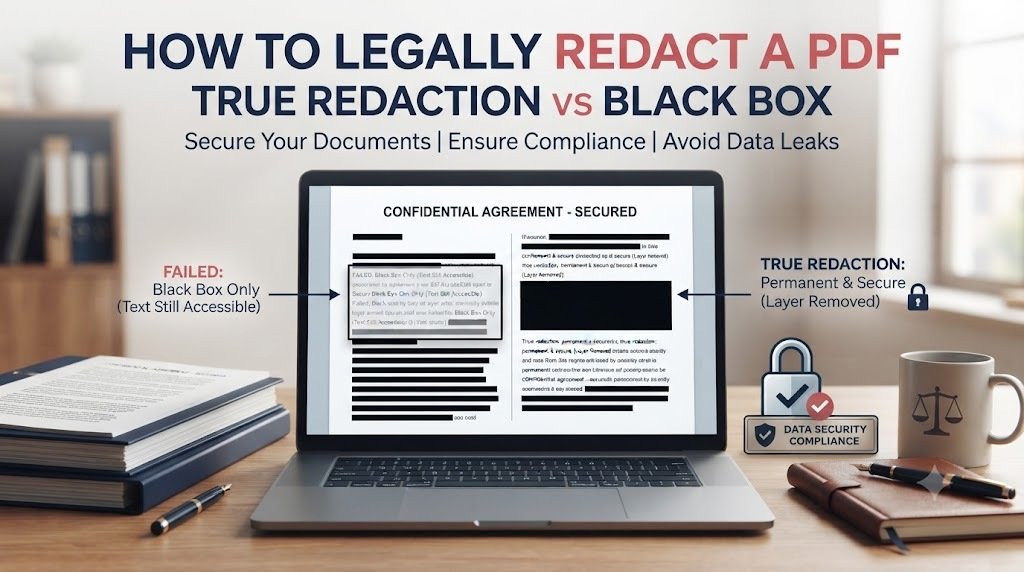
A PDF isn’t a flat image — it’s a layered document containing a separate text layer sitting underneath whatever you see visually. When someone tries to redact a PDF using a basic annotation or highlight tool, they’ve only added a new visual layer on top of the page. The original text layer is untouched, sitting there waiting for anyone to select it, copy it, and paste it somewhere else to read it in plain view.
This isn’t a hypothetical risk — failing to properly redact a PDF has repeatedly exposed real confidential information in high-profile cases. In 2019, Paul Manafort’s defense team filed a federal court document with what appeared to be redacted passages about sharing campaign polling data with a Russian-linked associate; reporters simply copy-pasted the “hidden” text and published it within hours, because the underlying PDF format used never actually removed the content. In the 2018 Facebook Six4Three litigation, journalists used the same copy-paste technique to reveal internal discussions about monetizing user data that Facebook’s legal team believed were properly concealed. Even Meta’s own legal team made the identical mistake in its 2025 FTC antitrust trial, filing documents with black boxes over competitor data from Apple, Google, and Snap — data that was fully recoverable through basic copy-paste. Government agencies aren’t immune either: Canada’s Border Services Agency released immigration case documents in 2021 where the same PDF conversion flaw let confidential case details be lifted straight out from under the black bars.
The pattern is identical every time: someone tried to redact a PDF using a tool that only masks text visually instead of removing it, and paid for it in public exposure.
The Legal Risk: How Bad Redaction Waives Privilege
This is where “how to redact a PDF” stops being a technical question and becomes a legal one. Under evidentiary rules governing privileged material in litigation, whether an inadvertent disclosure results in a permanent waiver of attorney-client privilege typically depends on whether the disclosing party took reasonable steps to prevent it and acted promptly to fix it once discovered. A failed redaction — one where the “hidden” text was trivially recoverable through copy-paste, text search, or OCR — is increasingly treated by courts as a failure of reasonable diligence, not an innocent accident. That distinction matters enormously: a reasonable, good-faith mistake can sometimes be corrected without losing privilege; a redaction failure caused by using the wrong tool or method is a much harder case to win.
Beyond privilege, a failed redaction of personal or financial data can also trigger separate consequences under data protection law — the kind of exposure I’ve written about in the context of India’s DPDP Act, 2023 privacy compliance requirements, and the same underlying principle — that visible concealment isn’t the same as actual data removal — applies just as much to GDPR, HIPAA, and most global privacy frameworks. In eDiscovery specifically, a redaction failure exposing privileged strategy or trade secrets has led courts to order corrective re-production, shift costs onto the offending party, and in repeated or egregious cases, impose direct sanctions.
Every time you redact a PDF for a court filing, a client record, or a regulatory disclosure, you’re making a legal judgment call as much as a technical one. None of this requires malicious intent. It only requires the wrong method to redact a PDF — a tool that draws a box instead of one that actually deletes the underlying content stream — which is exactly the distinction the right redaction tool is built to solve.
What “True Redaction” Actually Means
To properly redact a PDF, the sensitive text must be permanently excised from the document’s underlying content — not hidden, not layered over, not merely flattened into a single image, which, done incorrectly, can still leave a recoverable text layer depending on the method used. Once true redaction is applied, the information can’t be recovered through copy-paste, text search, layer removal, or even OCR, because there’s simply nothing left there to find. This is the entire distinction between an annotation tool and an actual PDF redaction tool.
Step-by-Step: How to Redact a PDF Using VelaPDF (The Right Way)
Here’s exactly how to redact a PDF the correct way using VelaPDF’s Redact PDF tool, which permanently deletes the underlying text rather than just covering it visually. If you need to redact a PDF quickly without installing any software, these five steps are all it takes:
- Upload your file. Go to the Redact PDF tool and upload the document you need to redact — contracts, HR files, financial statements, or court filings all work the same way. No account or signup is required.
- Select the text or area to conceal. Highlight the specific sentences, numbers, names, or regions of the page containing sensitive information — account numbers, signatures, personal identifiers, privileged legal notes, or any confidential clause you don’t want disclosed.
- Apply the black bars. The tool visually marks the selected areas the way a traditional redaction looks — but unlike a basic annotation tool, this step is paired with actual content removal, not just an overlay.
- Let the tool permanently erase the underlying content. This is the step that separates real redaction from a fake one: VelaPDF removes the selected text and data from the file itself, rather than merely covering it, so the copy-paste and search vulnerabilities described above simply don’t apply to the output file.
- Download your redacted PDF. Your redacted file is ready to share immediately, and since VelaPDF processes everything in isolated containers with automatic file deletion within 10 minutes, your original unredacted document isn’t sitting on a server somewhere afterward either.
For documents with large volumes of repeating sensitive data — hundreds of pages of client records with scattered emails, phone numbers, or Social Security numbers — VelaPDF’s Auto Redact tool can automatically detect and redact a PDF full of that kind of personally identifiable information without you having to manually mark every instance by hand.
Two Steps Most People Skip (And Shouldn’t)
1. Strip the Metadata Too
Learning how to redact a PDF properly doesn’t stop at visible text — if the PDF’s metadata still contains author names, edit history, or timestamps, it can reveal exactly what was changed and by whom. After redacting, run the file through VelaPDF’s Remove Metadata tool or the more thorough Sanitize PDF tool, which strips hidden scripts and residual private data that redaction alone doesn’t touch.
2. Verify the Redaction Actually Worked
Before you send or file a document you’ve tried to redact, run the same test a journalist or opposing counsel would run to confirm the PDF was actually redacted, not just masked:
- Open the redacted PDF in a different viewer than the one you used to create it.
- Try to select the blacked-out area and copy it into a plain text file. If any text appears, the redaction failed.
- Search the document for a word you redacted using Ctrl+F. If the search finds it, the text is still there.
- If the document contains scanned images, run OCR on it. If the “redacted” word repopulates, the underlying image wasn’t actually altered.
If all three tests come back clean, you’ve successfully managed to redact a PDF the right way and it’s safe to share. If any of them surface the hidden text, don’t send the file — go back and redact it properly before it becomes the next copy-paste headline.
Common Mistakes to Avoid When You Redact a PDF
- Trying to redact a PDF with a highlight or annotation tool instead of a true redaction tool. This is the single most common cause of every redaction failure covered above.
- Forgetting embedded images and thumbnails. Some PDF viewers generate a thumbnail preview of a page that can retain the original, unredacted content even after the main page is fixed.
- Skipping the metadata cleanup. A properly redacted document with intact author and revision metadata can still leak who changed what and when.
- Never testing the output. Assuming a black box worked without running the copy-paste and search tests described above.
- Redacting a scanned document without OCR awareness. If the underlying image still contains readable pixels of the original text, OCR can bring it right back.
When to Redact Yourself vs. When to Get Legal Advice
Knowing how to redact a PDF technically solves only half of this problem — permanently removing text so it can’t be recovered. It doesn’t solve the legal half: deciding what actually needs to be redacted in the first place, particularly in a contract, discovery production, or regulatory filing where getting that judgment wrong carries its own consequences. If you’re preparing a document for litigation, a privilege log, or a compliance disclosure and you’re not certain what should stay hidden, that’s a legal determination worth getting right before you redact anything — I’ve written more broadly about why contracts and legal documents function as trust-building assets, not just paperwork, and the same logic applies here: a properly redacted document protects a relationship or a legal position; a badly redacted one can actively damage both.
Conclusion: The Tool Matters, But So Does the Judgment
Learning how to redact a PDF correctly comes down to one core principle: visual concealment is not legal protection. A black box that a journalist, opposing counsel, or curious reader can strip away with a simple copy-paste isn’t redaction — it’s a liability wearing a disguise. Using a tool like VelaPDF’s Redact PDF feature, which removes the underlying content rather than just covering it, solves the technical failure mode that has embarrassed law firms, tech companies, and government agencies alike. But knowing what needs to be redacted, and understanding the privilege and compliance stakes if you get it wrong, is still a legal judgment call. If you’d like a document reviewed for what actually needs to be redacted before you rely on any tool, you can reach out here, or explore more legal guidance on the blog.
Frequently Asked Questions (FAQ)
1. How do I redact a PDF so the text can’t be recovered? Use a dedicated PDF redaction tool, such as VelaPDF’s Redact PDF feature, that permanently deletes the underlying text content rather than simply drawing a black box over it. Always verify by attempting to copy-paste or search the redacted area afterward.
2. Is drawing a black box over text in a PDF enough to redact it? No. A black box created with a basic annotation or highlight tool only covers the text visually. The original text layer typically remains fully intact and can be revealed through copy-paste, text search, or OCR.
3. Can a failed redaction waive attorney-client privilege? Yes, potentially. Courts assess whether reasonable steps were taken to prevent inadvertent disclosure. A redaction failure caused by using the wrong method — rather than a genuine accident despite reasonable care — is more likely to be treated as a failure of diligence that can result in permanent privilege waiver.
4. What is the difference between visual redaction and true redaction? Visual redaction hides text behind a black box while leaving the underlying data intact. True redaction permanently removes the sensitive content from the PDF’s file structure, so there is nothing left to recover through copy-paste, search, or OCR.
5. How can I check if a redacted PDF is actually safe to share? Open the file in a different PDF viewer, try to select and copy the blacked-out area, and search for a word you redacted. If either action reveals the hidden text, the redaction failed and the document should not be shared.
6. What information should typically be redacted from legal documents? Common categories include personal identifying information, account and financial numbers, signatures, privileged attorney-client communications, trade secrets, and any information restricted under a confidentiality or non-disclosure obligation — though the specific scope should be determined based on the applicable legal context.
7. Does redacting a PDF also remove hidden metadata? Not automatically. Redacting visible text and removing metadata (author names, edit history, timestamps) are separate steps. A thorough redaction workflow should include both, using a metadata removal or PDF sanitization tool after redacting the visible content.
8. What happens if a court discovers a redaction failure in a filed document? Consequences can include being ordered to file a corrected version, cost-shifting for the other party’s remediation efforts, and in cases involving repeated or clearly negligent failures, direct sanctions from the court.
9. Can scanned PDF documents be redacted safely? Yes, but scanned documents require extra care, since the “text” is often an image. If the underlying image pixels aren’t altered and only a box is drawn over them, running OCR on the file can regenerate the original text. A proper redaction tool should address the image layer directly, not just the visible overlay.
10. Is it safe to use a free online tool to redact a PDF containing confidential legal documents? It depends entirely on how the tool processes and removes the underlying content. Look for tools that explicitly perform true content removal rather than annotation-based masking, and that don’t retain your files afterward — VelaPDF, for example, automatically deletes files within 10 minutes of processing.
Internal linking note: All internal links above point to real, live pages on parvezali.me and velapdf.com. This piece connects the legal-risk side of redaction (parvezali.me) directly to the technical solution (velapdf.com’s Redact PDF, Auto Redact, and Remove Metadata/Sanitize PDF tools) — the flywheel described in the brief.
Keyword density note: This draft targets roughly 1% density for the focus keyword “redact a pdf” and its close variants (how to redact a PDF, PDF redaction tool). Run it through Rank Math’s live content analysis after pasting into WordPress, since exact density shifts slightly with final formatting and any edits you make.