
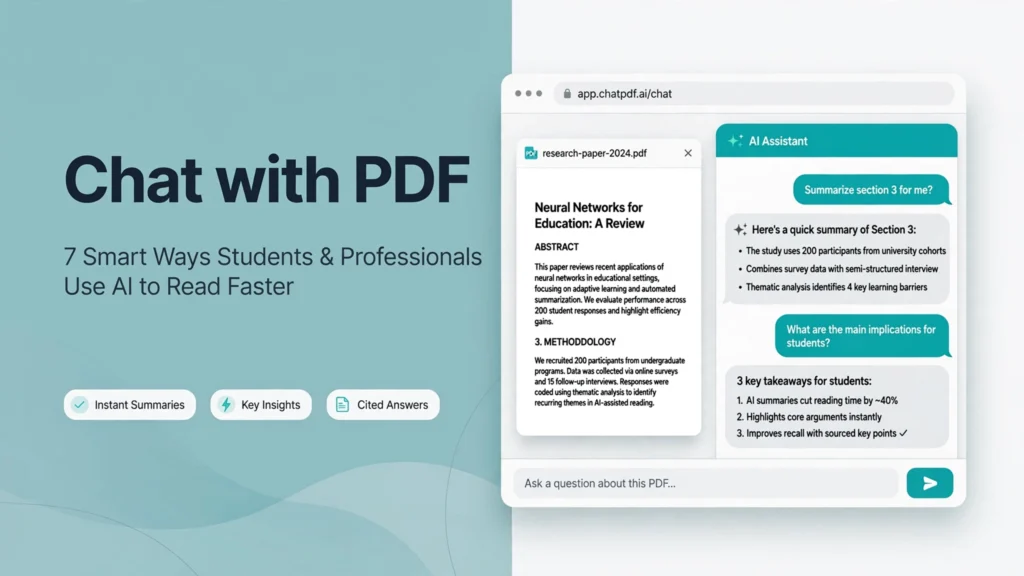
Chat with PDF tools have quietly become one of the highest-leverage AI use cases available today, and almost nobody talks about them the way they actually get used. Students, lawyers, founders, and busy professionals lose hours every week scrolling through long PDFs — research papers, contracts, reports, meeting notes — hunting for the one paragraph that actually matters. The shift underway right now is real: instead of reading everything start to finish, you can upload a document and simply ask it questions, getting instant, specific answers instead of a slow manual search.
I’m Parvez Ali — a contract lawyer who also co-founded VelaPDF, and I genuinely use Chat with PDF daily, for contracts, legal research, and long reports that would otherwise eat an entire afternoon. This isn’t a gimmick roundup. Below are 7 practical, real-world ways to use Chat with PDF productively, the same ways I actually rely on it myself.
1. Summarize Long Research Papers or Reports in Minutes
If you’re a student or researcher staring down a 40-page paper before a deadline, this is the single highest-value use case. Upload the PDF, then ask Chat with PDF for a structured summary — key findings, methodology, conclusions — rather than reading the entire thing linearly.
Pro tip: Don’t just ask for “a summary.” Request summaries by section, or try a specific prompt like “give me an executive summary in 200 words,” which forces a tighter, more usable output than a generic open-ended request. This same discipline — asking for something specific rather than something vague — is worth applying anywhere you’re relying on AI output, including if you’re using it to help draft (never to finalize) something like website legal pages, which still need a lawyer’s review regardless of how the first draft got written.
2. Extract Key Clauses from Contracts Quickly
This is where Chat with PDF genuinely changes how I work as a lawyer. Instead of manually scanning a 20-page agreement for specific terms, targeted prompts pull exactly what you need:
- “List all termination clauses”
- “What are the payment terms and late payment penalties?”
- “Highlight any non-compete or confidentiality obligations”
This saves real time during contract review specifically, since most contract disputes trace back to a handful of specific clauses — termination, payment, liability, confidentiality — rather than the document as a whole. If you’re the one drafting these documents rather than just reviewing them, our guide on types of contracts every business should know covers what should actually be in each agreement type before you ever need to extract a clause from it.
3. Ask Specific Questions Instead of Reading the Entire Document
This is arguably the core shift Chat with PDF represents: turning a 40-page report into an actual conversation rather than a linear read. Instead of scrolling to find what you need, you ask directly:
- “What is the main risk mentioned on page 12?”
- “Does this agreement allow sub-licensing?”
Document-aware answers with page references — a feature worth specifically looking for in any AI PDF summarizer you choose — mean you can verify the answer against the original text in seconds, rather than trusting a black-box response blindly. This verification habit matters most when the document in question is something like a contract with real legal weight — see our freelancer confidentiality guide for the kind of clause-level detail worth double-checking rather than taking an AI summary’s word for it.
4. Compare Two Versions of a Document
Reviewing a revised contract or an updated policy against its previous version is one of the more tedious manual tasks Chat with PDF genuinely eliminates. A simple prompt — “what are the main differences between these two versions?” — surfaces exactly what changed, without you manually cross-referencing paragraph by paragraph.
This is particularly useful if you’re regularly updating legal pages on your own site — our checklist on Terms of Service vs Privacy Policy: what’s the difference is worth pairing with this workflow if you’re tracking changes across your own website’s legal documents over time.
5. Prepare for Meetings or Client Calls Faster
Upload meeting agendas, previous notes, or client documents before a call, and use Chat with PDF to get oriented in minutes instead of re-reading everything from scratch:
- “What are the open points I need to address?”
- “Summarize the client’s main concerns”
For anyone managing multiple client relationships or contributor arrangements simultaneously, this kind of fast pre-call orientation genuinely matters — the same organizational discipline that makes protecting confidential information when working with freelancers and contractors manageable at scale rather than something that falls apart once you’re juggling more than a couple of relationships at once.
6. Turn Dense Academic or Technical PDFs into Simple Explanations
Complex material — dense academic papers, technical specifications, jargon-heavy reports — becomes considerably more accessible with a single, well-aimed prompt: “explain this concept in simple language as if I’m a beginner.” This is genuinely one of the better uses of Chat with PDF for students specifically, since it doesn’t just summarize, it re-explains at a level that actually matches where you’re starting from — the same “meet the reader where they are” principle behind how we approach breaking down business contracts for founders who aren’t lawyers themselves.
7. Create Study Notes or Action Lists Automatically
Rather than manually pulling notes from a long document, ask Chat with PDF to generate them directly:
- Bullet-point notes
- Action items
- A glossary of important terms
This is especially useful for exam preparation or project planning, where the goal isn’t reading comprehension for its own sake, but converting a document into something immediately actionable — try it on the same tool linked throughout this piece, VelaPDF’s Chat with PDF.
Important Limitations & Best Practices
Chat with PDF tools are genuinely powerful, but they’re not infallible, and treating them as such is where people get into trouble:
- AI can miss context or make mistakes — always verify critical information manually, especially anything involving legal clauses, financial figures, or anything with real consequences if you’re wrong
- Privacy matters, considerably more than most people think about it. Prefer tools that process files temporarily and delete them automatically, rather than retaining your uploads indefinitely on a third-party server. I’ve written specifically about this risk in why your online PDF tools should never store your files — it’s the exact reason VelaPDF’s Chat with PDF feature auto-deletes uploaded files rather than keeping them around
- Best results come from clear, specific prompts. “Summarize this” gets a generic answer; “summarize the methodology section in 150 words” gets something actually usable
Conclusion
Chat with PDF doesn’t replace careful reading — it multiplies your speed and focus, letting you spend your actual attention on the parts of a document that matter instead of the parts that don’t. Whether you’re a student drowning in research papers or a professional reviewing contracts before a signature deadline, this is genuinely one of the highest-ROI AI use cases available right now, not a novelty. If contracts specifically are where you spend most of your document time, our pillar guide on types of contracts every business should know is worth reading alongside whatever Chat with PDF tool you settle on.
Try It Yourself
If you want to try a clean, private Chat with PDF tool — no signup required, files automatically deleted — you can use the one we built at VelaPDF. Upload a document and start asking it questions directly; it’s the same tool referenced throughout every example in this article.
And if you need actual contracts, NDAs, or policies drafted properly — not just reviewed after the fact with AI — feel free to reach out. Chat with PDF is excellent for understanding a document quickly; it’s not a substitute for having the right one drafted in the first place.
This article reflects general practical guidance and personal experience using AI document tools. Always verify AI-generated summaries of legal, financial, or otherwise consequential documents against the original source before relying on them.